How to Fix JFIF Files Permanently in Windows 10 or 11
Windows keeps handing you photos labeled .jfif instead of .jpg, quietly enough that you might not notice until an upload form rejects the file or a printer refuses to open it. The cause is a small registry setting, not a corrupted download. Below are two verified fixes for Windows 10 and 11, plus a fast way to fix the .jfif files you already have.
Why Windows Does This
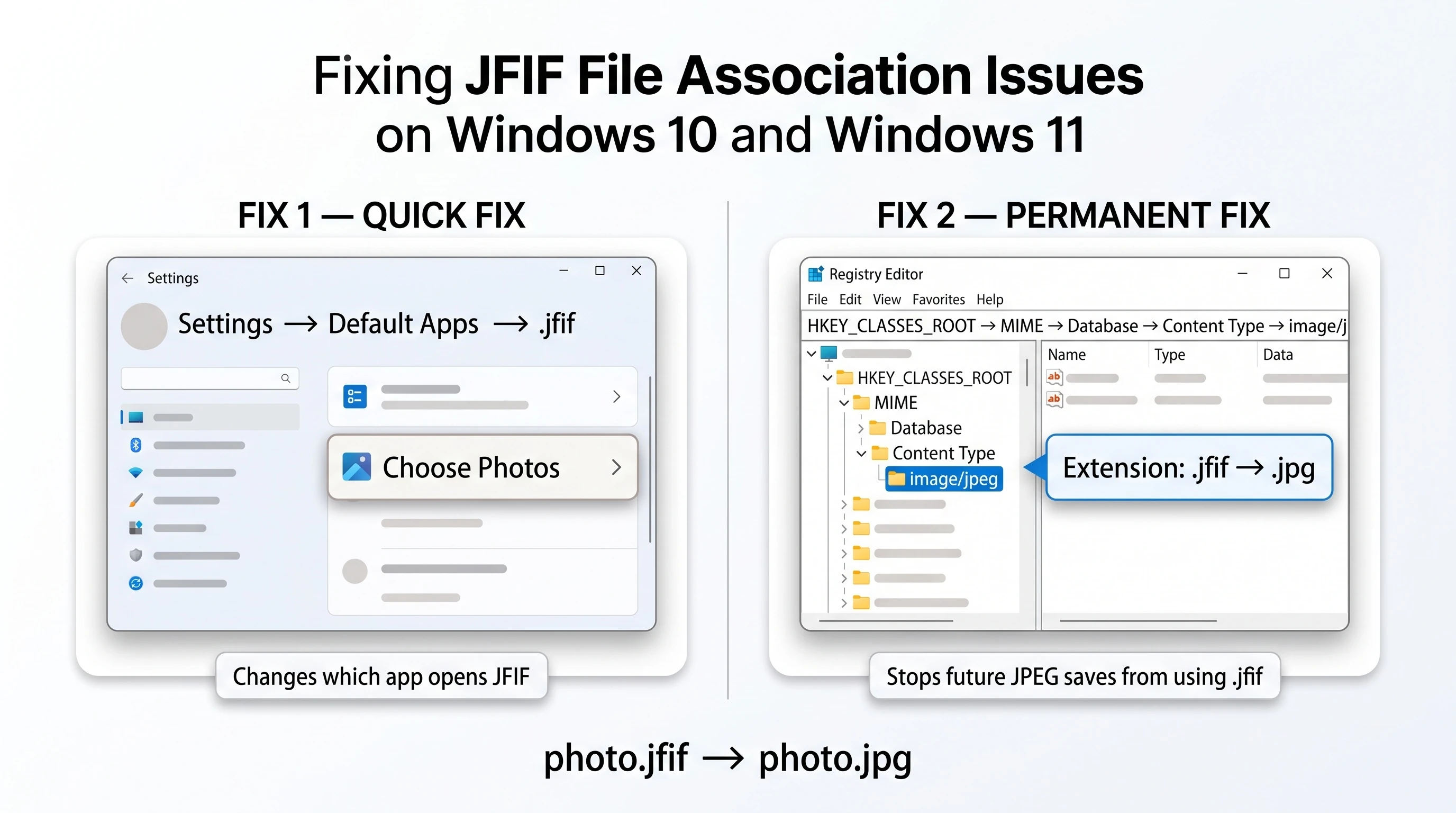
The behavior comes from a registry mapping between the JPEG content type and the .jfif file extension. According to a Microsoft Q&A thread on the issue, this key lives at HKEY_CLASSES_ROOT\MIME\Database\Content Type\image/jpeg and tells any browser that saves a JPEG image which extension to use.
It is not a bug in your photo. A .jfif file is already a real JPEG image under a different label - see our explanation of what a JFIF file actually is for the technical detail.
Fix 1: Change the Default App (Quick, No Registry Editing)
This fix controls which program opens .jfif files when you double-click one. It does not stop future downloads from using the .jfif extension - for that, use Fix 2 below.
- Open Settings and search for Default apps.
- Scroll to the file type list and search for .jfif.
- Select your preferred viewer (Photos, or any image editor you use).
This is the same approach outlined in a Microsoft Q&A thread on changing default apps for a file type.
Fix 2: Edit the Registry (Permanent Fix)
This is the fix that actually stops Windows and Edge from saving new images as .jfif in the first place. Back up the registry or create a system restore point before editing it, since registry changes affect the whole system.
- Press Win + R, type
regedit, and press Enter. - Navigate to
HKEY_CLASSES_ROOT\MIME\Database\Content Type\image/jpeg. - Double-click the Extension value.
- Change the value data from
.jfifto.jpgand click OK. - Restart your browser for the change to take effect.
This matches the fix documented in the Microsoft Q&A thread cited above.
What About Files You've Already Saved as .jfif?
The registry fix only changes future saves. Files already sitting in your Downloads folder stay .jfif until you fix them individually.
Since a .jfif file's bytes are already a valid JPEG (per the Wikipedia entry on JFIF), fixing one file is as simple as renaming the extension. For more than a handful of files, renaming each one by hand gets tedious fast - our free JFIF to JPG converter does it instantly for a whole batch, entirely in your browser, with no upload involved.
Quick Answers
Does the registry fix work on both Windows 10 and Windows 11?
Yes. The Content Type\image/jpeg key is part of the shared Windows file-association system used in both versions.
Will this fix affect other file types?
No. The edit above only changes the extension Windows uses for the JPEG content type - it does not touch PNG, WEBP, or any other format.
For the reverse situation - an app that specifically expects a .jfif extension - see our JPG to JFIF tool. For more on why this setting exists in the first place, read why Windows and Edge save photos as JFIF, or browse the rest of the blog.