PNG to WEBP: Smaller Files Without Losing Transparency
Converting a PNG to JPG for a smaller file usually means giving up transparency entirely, which isn't an option for logos, icons, or any graphic that needs to sit on top of something else. Converting PNG to WEBP solves that specific problem instead - it keeps a full alpha channel while still compressing meaningfully better than PNG, which is why it's worth considering before you reach for JPG by default.
Understanding the Formats: PNG vs WEBP
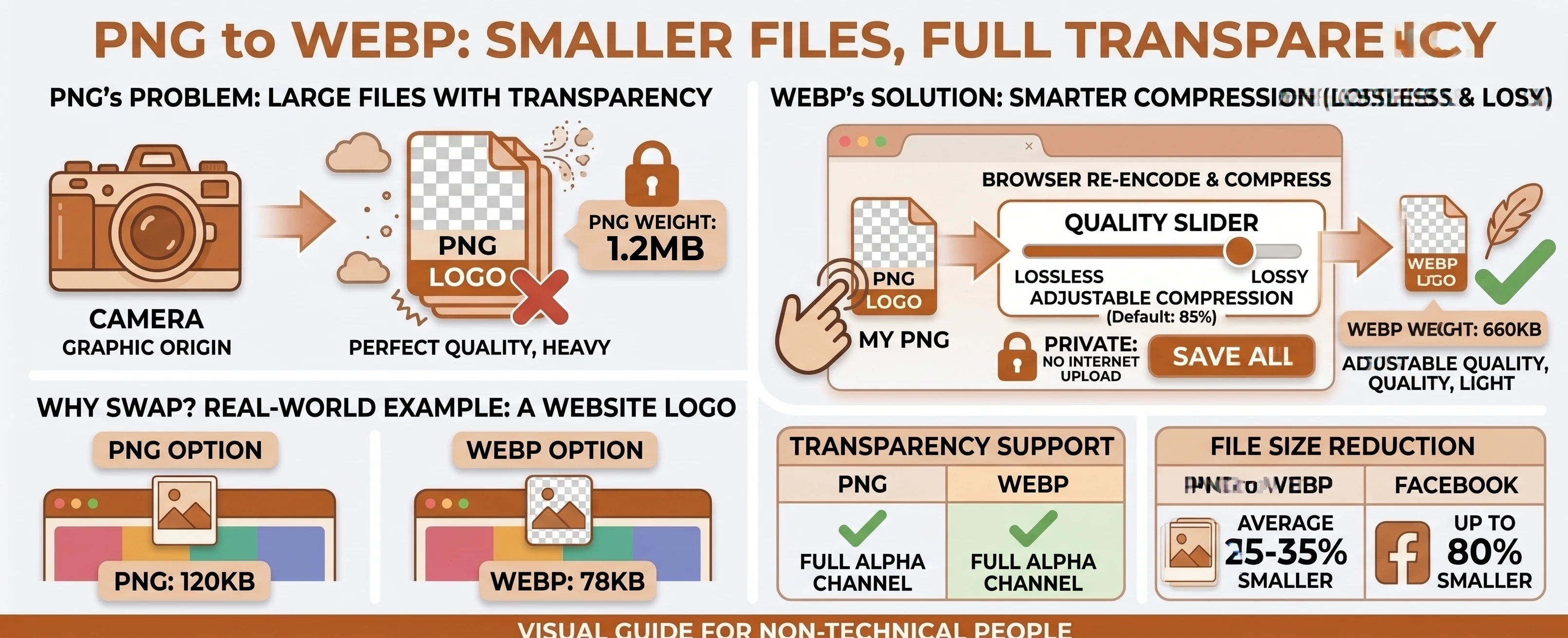
PNG has been the go-to choice for graphics that need transparency for decades - logos, icons, UI elements, anything that has to sit cleanly on top of another background. It stores every pixel losslessly, which keeps edges sharp but makes the file noticeably heavier than a compressed format would need.
WEBP is Google's newer answer to the same problem: a format designed from the start to compress web images more efficiently than either PNG or JPEG, while still supporting the same full transparency PNG offers. It's newer, which is the only real reason it isn't the universal default yet.
How Much Smaller Does WEBP Actually Get?
Google's own measurements, cited in Wikipedia's entry on WebP, found "a conversion from PNG to WebP resulted in a 45% reduction in file size when starting with PNGs found on the web." Google's web.dev guide gives a similar range for general use, noting WebP images are typically "smaller than their JPEG and PNG counterparts - usually on the magnitude of a 25-35% reduction in filesize," with real-world deployments like Facebook reporting "an 80% filesize savings for PNGs when they switched to using WebP."
Transparency Actually Survives the Conversion
Unlike JPEG, WEBP supports a real alpha channel in both its lossy and lossless modes - Wikipedia notes Google added "lossless compression mode, and support for transparency (alpha channel) in both lossless and lossy modes" back in 2011. That makes our free PNG to WEBP converter a genuinely different tradeoff than converting to JPG: you keep the transparent background and still shrink the file. See the full PNG vs WEBP comparison table for the rest of the differences.
This Is Still a Real Re-Encode
PNG and WEBP are different formats with different compression - Wikipedia's entry on PNG notes it "uses DEFLATE, a non-patented lossless data compression algorithm," nothing like WEBP's own encoding - so, same as every PNG-sourced tool on this site, there's no instant, byte-for-byte rename available here, only a genuine re-encode with a quality slider you control. If maximum compatibility with older software matters more than file size, MDN's image format guide still points to JPEG as "the most widely used" option, and our PNG to JPG converter is the safer default, just without transparency.
A Common Case: Logos and Icons on a Website
This pairing shows up most on sites trying to trim page weight without breaking their design - a logo, an icon set, or a UI graphic that sits on a colored or photo background needs its transparent edges intact, so JPG is never an option for it. Swapping those PNGs for WEBP keeps every pixel of transparency while cutting the file weight the browser has to download, which adds up across a page with dozens of small graphics.
Converting PNG to WEBP in Your Browser
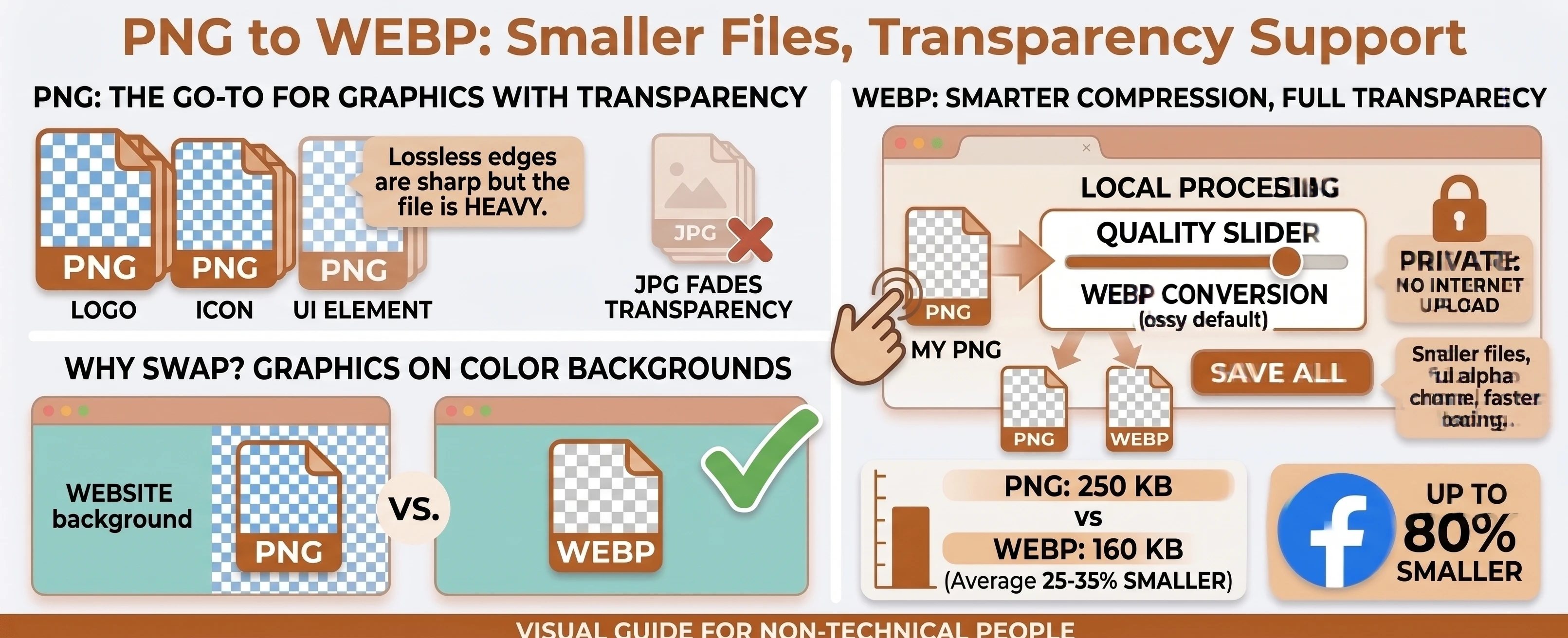
Drop or select your PNG files, leave the format set to WEBP, and convert. The whole process runs locally with nothing uploaded, and once two or more files are done, they can be downloaded together as a single .zip instead of one at a time.
Need to go the other way? Our WEBP to PNG converter re-encodes back into a fully lossless file. Browse the rest of our conversion tools, or the blog for more format guides.