PNG to JPG: Why the File Gets Smaller (and What You Give Up)
A PNG straight out of a screenshot tool or design app can be several times heavier than a JPG of the same image, which becomes a real problem the moment an upload form enforces a size limit or a slow connection is involved. Converting PNG to JPG fixes that - it isn't complicated, just a genuine re-encode into JPEG's lossy compression, done entirely in your browser with a quality slider you control.
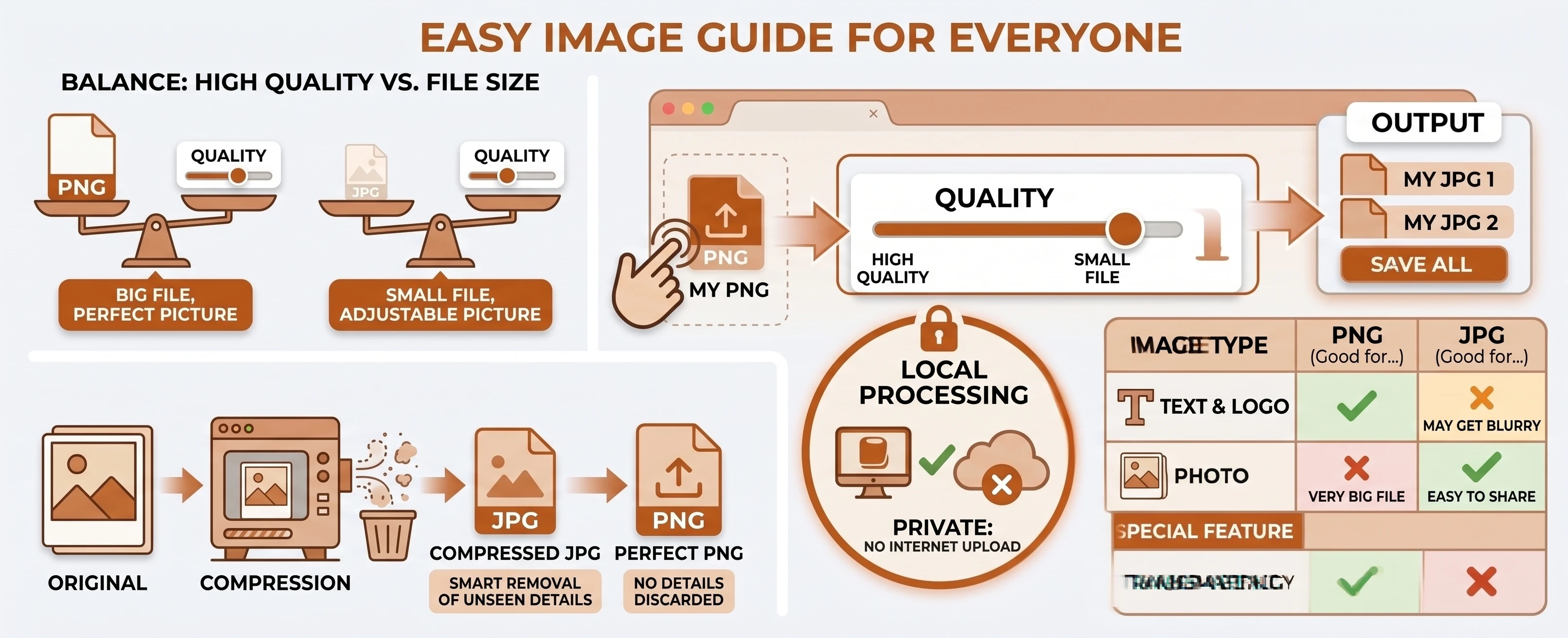
Understanding the Formats: PNG vs JPG
PNG is the format your computer usually reaches for by default when something is generated digitally rather than photographed - a screenshot, a screen recording still, a chart exported from software. It stores every pixel exactly as it was created, which is why text and sharp edges in a PNG stay crisp no matter how many times you open and re-save it.
JPG (the same thing as JPEG) is built for photographs instead. Cameras, phones, and photo-editing software default to it because real-world photos have gradual color transitions that lossy compression can shrink dramatically with almost no visible difference - a tradeoff that works far worse on flat-color graphics, which is exactly why PNG exists for those instead.
Why PNG Files Are So Much Bigger
PNG uses lossless compression - Wikipedia's entry on PNG explains it "uses DEFLATE, a non-patented lossless data compression algorithm," reconstructing an image pixel-for-pixel with nothing discarded, which is exactly why it's the right choice for screenshots, logos, and graphics with flat color. According to MDN's image format guide, PNG "is preferred over JPEG for more precise reproduction of source images, or when transparency is needed," while JPEG remains "the most widely used lossy compression format for still images." That losslessness is also the reason PNG files balloon in size for photographic content, where JPEG's lossy compression was specifically designed to shrink files most people can't tell apart from the original.
This Is Always a Real Re-Encode, Never a Rename
Every conversion through our free PNG to JPG converter actually decodes the PNG and re-encodes it as JPEG, which is also why you get a real quality slider rather than a fixed, all-or-nothing result - see the full breakdown in our PNG vs JPG comparison table. That's different from our JFIF to JPG converter, which can do an instant, byte-for-byte rename because a .jfif file's contents are already JPEG data. PNG is a genuinely different format - different compression, different byte structure - so there's no shortcut here.
What You Lose: No Transparency
JPEG has no alpha channel, so any transparent or semi-transparent pixels in the source PNG get filled with white before encoding - MDN confirms plainly that "JPEG does not support an alpha channel." If the image needs to stay transparent, converting to JPG is the wrong move entirely; our PNG to WEBP converter keeps transparency while still shrinking the file.
A Common Case: Screenshots for a Support Ticket or Upload Form
A typical screenshot - say, an error message or a settings panel - is mostly flat color and text, which PNG compresses reasonably well already, but photos are the case where the size gap really shows up. A phone photo saved as PNG can sit several megabytes heavier than the same shot saved as JPG, purely because PNG isn't discarding anything. That difference matters most in exactly the situations people reach for this tool: a support form capped at 5MB, a slow upload on mobile data, or a batch of photos that needs to fit in an email attachment limit. None of that requires touching the image in an editor first - the re-encode handles it.
Converting PNG to JPG in Your Browser
Drop or select your PNG files, adjust the quality slider if the default isn't right for your image, and convert. Nothing is uploaded to a server at any point - the quality slider maps directly to the quality argument the Canvas API's toBlob() method accepts for lossy formats like JPEG, the same encode pipeline that handles every format on this site. Once two or more files finish, a "download all" button appears for grabbing the whole batch as one .zip.
Need the reverse direction instead? Our JPG to PNG converter re-encodes the other way and restores a usable alpha channel, though it can't invent detail JPEG already discarded. Browse the rest of our conversion tools, or the blog for more format guides.