JPG to PNG: When You Need Lossless Instead of Compressed
A JPG is usually the right format for a photo, but the moment you need to edit it further, add transparency, or avoid stacking up more compression artifacts on each save, a lossless format becomes the better choice. Converting JPG to PNG doesn't undo the quality already lost from the original JPEG's compression, but it stops any further loss from happening on every edit after this one.
Understanding the Formats: JPG vs PNG
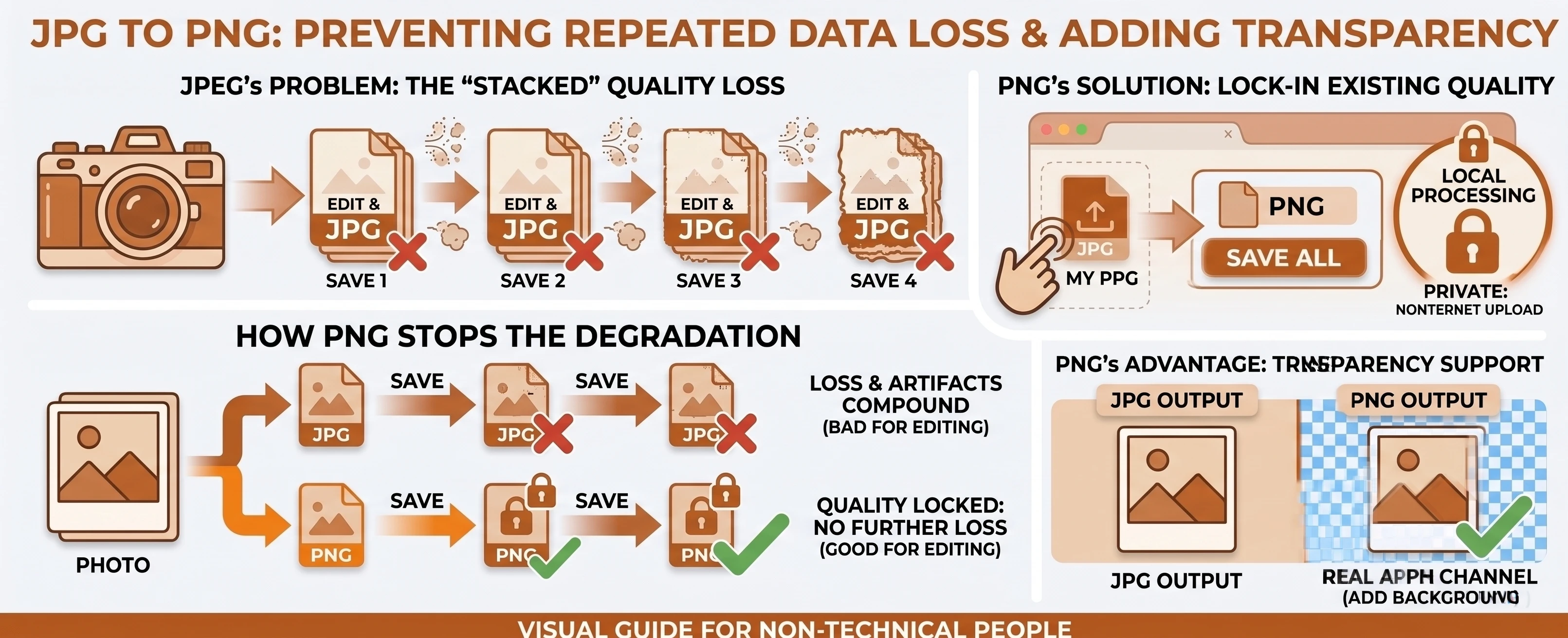
JPG is what almost every camera, phone, and photo app saves to by default, because its lossy compression shrinks photographic detail down to a fraction of the size with a quality hit most people never notice. That efficiency comes from throwing detail away permanently, which is fine once - repeatedly is where it costs you.
PNG takes the opposite approach: it never discards anything, so a PNG saved and re-saved a hundred times looks identical to the first save. It also supports real transparency, something a JPG's compression scheme was never built to handle at all.
Why "Lossless" Doesn't Mean "Restores Quality"
MDN's image format guide describes PNG as using "lossless compression," meaning nothing is discarded during the PNG encode itself. But a JPEG has already thrown away some image detail the moment it was first compressed - converting to PNG afterward locks in whatever detail remains, it doesn't bring back what the original JPEG encode removed. Where PNG genuinely helps is preventing compounding loss: re-saving a PNG repeatedly doesn't degrade it further the way re-saving a JPEG does.
The Real Reason to Convert: Editability and Transparency
PNG's biggest practical advantage over JPG is a real alpha channel - Wikipedia's entry on PNG notes it offers "full-color non-palette-based RGB or RGBA images," which JPEG has no equivalent for. If you're about to add a transparent background, cut out a subject, or layer the image in design software, our free JPG to PNG converter gets you a format that actually supports it. See the JPG vs PNG comparison table for the rest of the tradeoffs.
This Isn't the Instant Rename, Either
JPG and JFIF are the same underlying format, so our JPG to JFIF tool can relabel a file instantly with zero re-encode. PNG is a genuinely different format with different compression, so converting from JPG to PNG always means a real decode and re-encode - there's no shortcut available, and the file will typically end up larger than the original JPG despite nothing new being added.
A Common Case: Prepping an Image for Editing
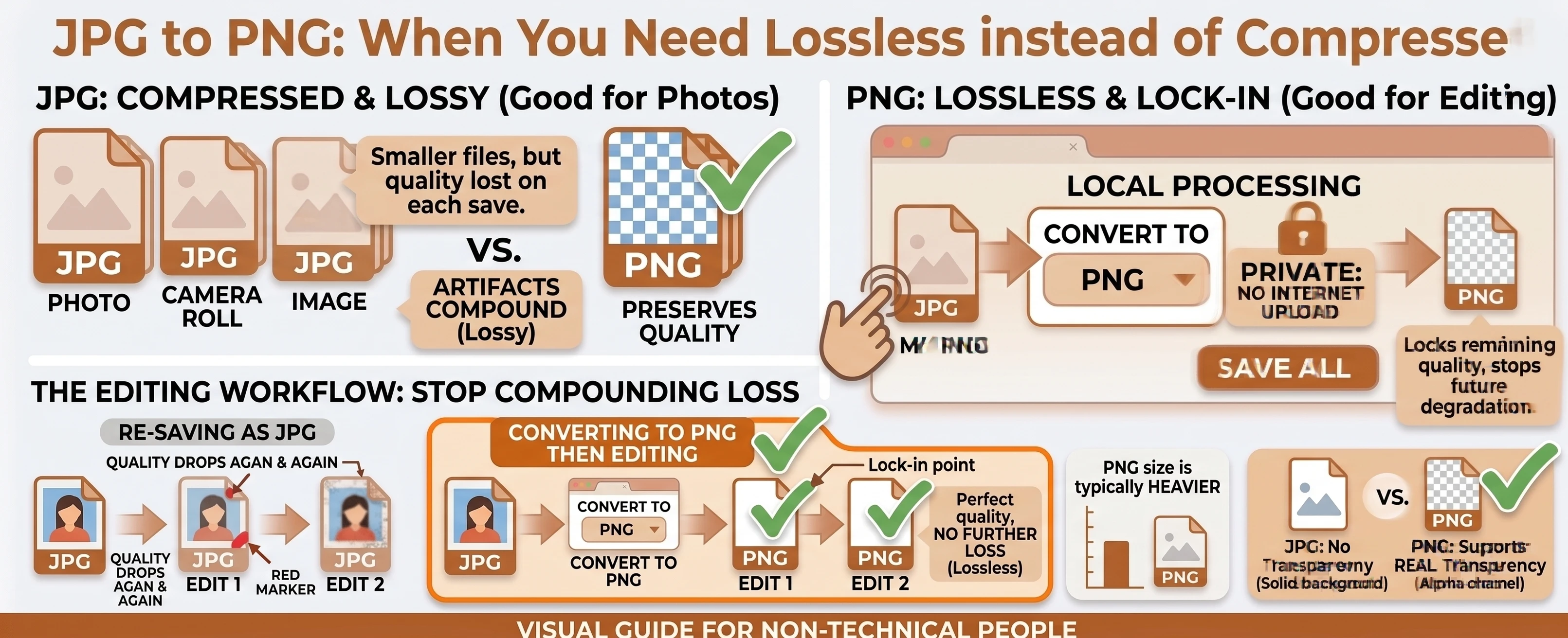
This one comes up constantly for anyone doing design work: a client sends over a JPG photo, and the first step before cutting out a subject or dropping in a transparent background is getting it into a format the editor can actually work with cleanly. Converting to PNG first means every subsequent save in your editor stays lossless, instead of quietly re-compressing the JPG a little more each time you hit save.
Converting JPG to PNG in Your Browser
Drop or select your JPG files, set the target format to PNG, and convert. PNG output has no quality slider to worry about, since the Canvas API's toBlob() method only applies a quality argument to lossy formats, never to PNG - everything runs locally in your browser, and a completed batch of two or more files can be downloaded together as one .zip.
Need a smaller file instead of a lossless one? Our JPG to WEBP converter compresses further while still beating JPEG's efficiency. Going the other direction, PNG to JPG shrinks a lossless file back down. Browse the rest of our conversion tools, or the blog for more format guides.